Update your business details
Keep your business name, tax code, and address accurate so they appear correctly on receipts and e-invoices.
Your store’s name, tax code, and address print on every receipt and VAT e-invoice and feed into your reports — so it is worth keeping them accurate. This guide shows you where to manage them and how the Check button fills most of it in for you.
These are your business details, which is different from your personal login. Your own name and password live in your profile; this page is about how the shop itself appears to customers.
Before you start
- Owner or manager access to the store — only those roles can edit business details.
- Your registered business name, 10-digit tax code, and address. With the tax code, BANA can fill in the rest for you.
Open your business details
Open Settings → General
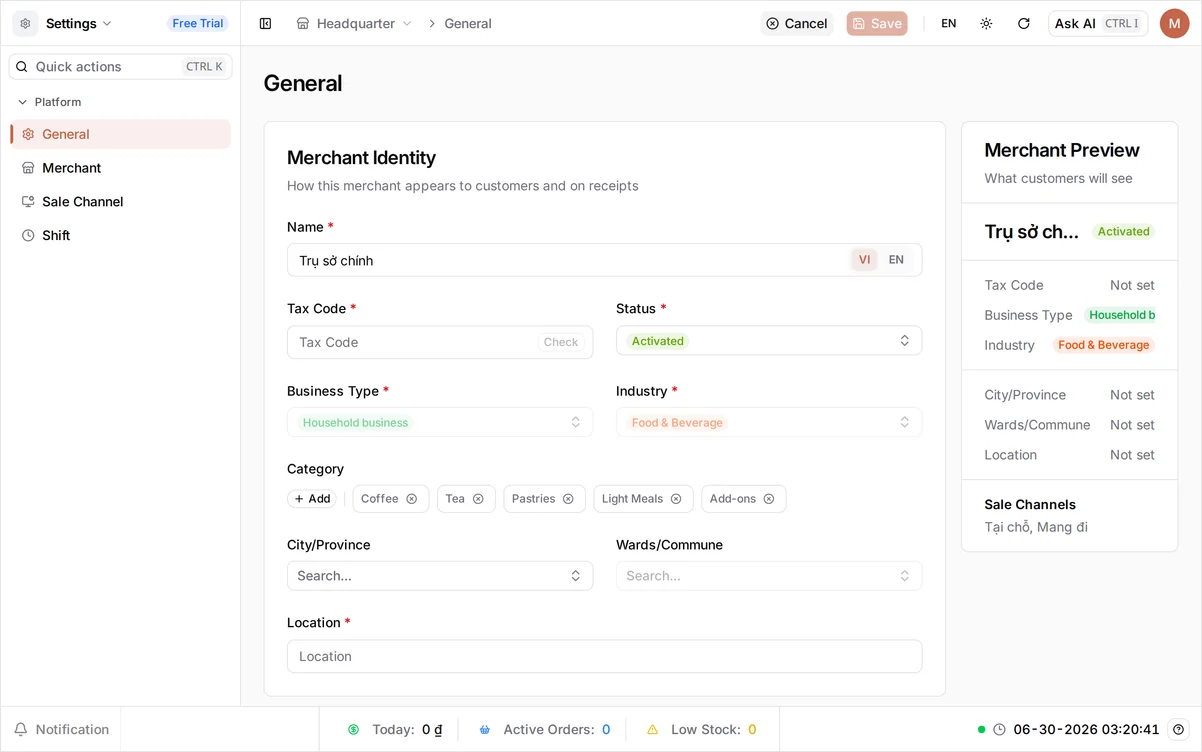
Sign in at client.prods1.bana.com.vn and select your store. From the dashboard, open the Settings card, then select General. The top section, Merchant Identity, is where your business details live — “how this merchant appears to customers and on receipts.”
On the right, a live Merchant Preview panel mirrors what a customer sees. Watch it update as you edit the fields.
Update the details
Set your business name and tax code
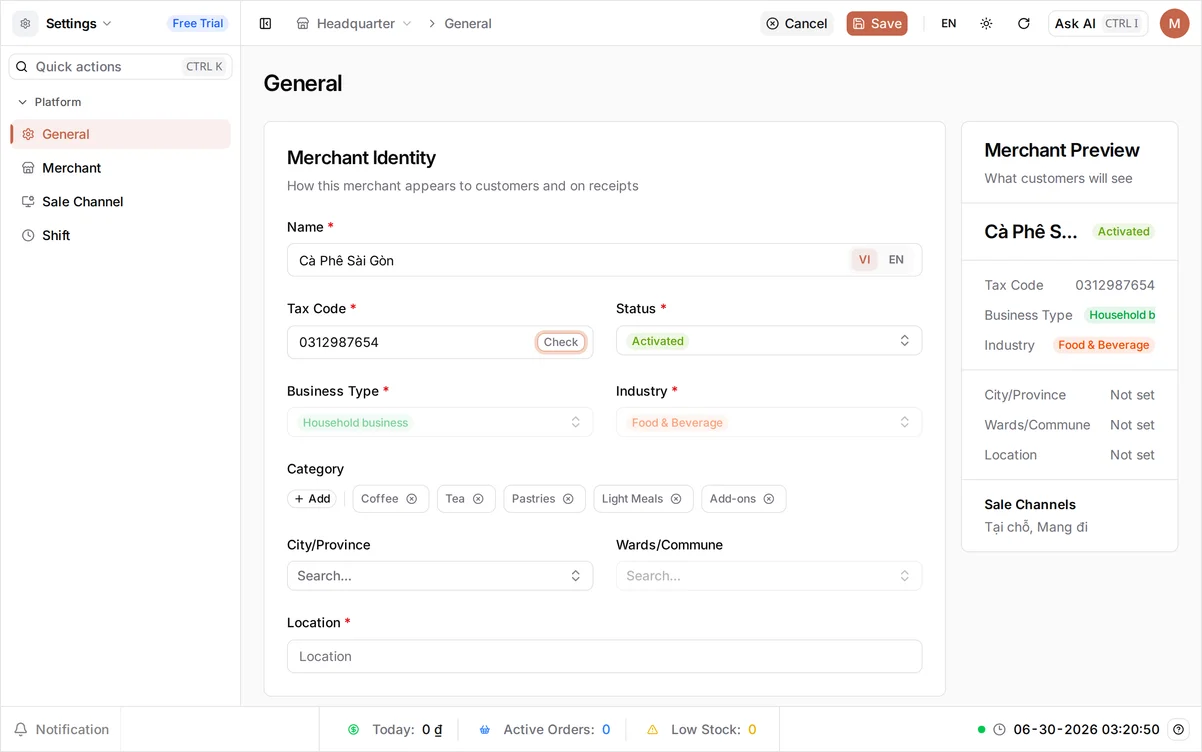
- In Name, type your business name (
Cà Phê Sài Gòn). The name is bilingual — use the language toggle on the field to set the English and Vietnamese versions. English is required; this is the name customers see on receipts, and it replaces the default Headquarter. - In Tax Code, enter your 10-digit tax code (
0312987654), then select Check. BANA looks the code up with the tax authority and, when it finds a match, fills in your registered name and address automatically — so you may not need to type the address at all.
Add your address and save
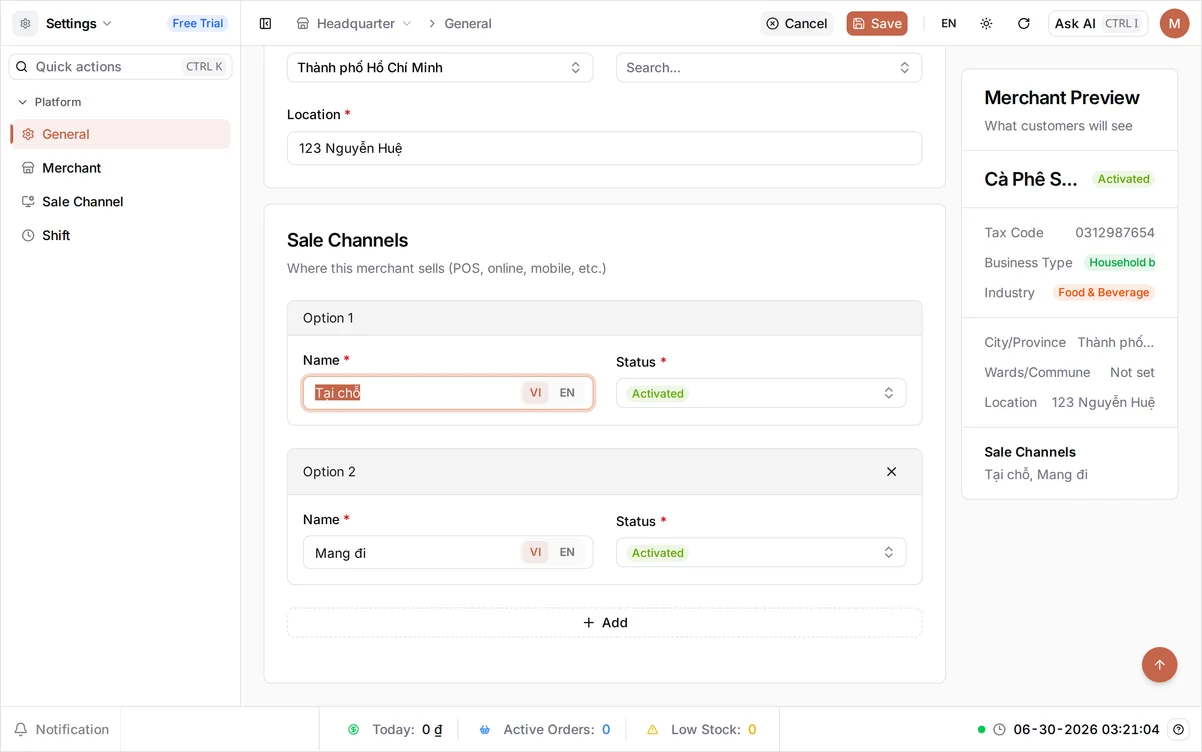
- Choose your City/Province, then your Wards/Commune from the dropdowns, and type the street address in Location (for example
123 Nguyễn Huệ). If Check already filled these in from your tax code, just confirm they are right. - Glance at the Merchant Preview panel on the right — it now reflects your name, tax code, industry, and address, exactly as customers see them on receipts.
- Select Save in the top bar.
Your Industry shows Food & Beverage from signup. Industry and Business Type are fixed when the store is created and cannot be changed here. Everything else you can edit and save again whenever it changes — the update applies across the dashboard and the BANA Sale app at sale.prods1.bana.com.vn right away.
Tip: Get your tax code right before you start issuing e-invoices — it cannot be changed on an invoice after it is issued. See Issue e-invoices.
Troubleshooting
- Receipts still say “Headquarter”: you have not renamed the store yet. Set Name to your business name and select Save.
- The Check button is greyed out: enter the tax code first — the button activates once the field has a value.
- Tax code won’t validate: confirm it is a valid 10-digit number. If the tax authority has no record yet, you can still type the name and address by hand and save.
Next steps
Your business identity is set. Next, set up how you get paid.
Frequently asked questions
Can I change my industry or business type later?
No. Industry and Business Type are set when the store is created and stay fixed. Everything else — name, tax code, and address — you can update here whenever you need to.
What is the difference between my business details and my profile?
Business details are your shop's public identity — the name, tax code, and address customers see on receipts. Your profile is your personal login: your own name and password. They are managed separately.
Do I have to fill in the tax code to save?
No, you can save without it. But you need a valid 10-digit tax code before you can issue VAT e-invoices, so it is best to add it early.
Will updating my business name change receipts I already issued?
No. Changes apply to new receipts and invoices from the moment you save. Documents already issued keep the details they had at the time.